
Creating Containers in VS Code using Fkh (Freddy's Kubernetes Helper)
In my previous post I introduced Fkh - Freddy’s Kubernetes Helper and explained the what and the why. This post is all about the how - specifically, how you create your first Business Central container with Fkh.
Prerequisites
Before you can create your first container, you need to install and setup Freddy’s Kubernetes Helper (Fkh). You can find the installation guide here
Beside that, you need to install the Fkh VS Code Extension, found here or if you are using Cursor - you will find it here.
Because the containers run in Kubernetes in your own Azure subscription, you do not need Docker or BcContainerHelper on your machine.
Creating your first container
Creating a container is a one-click operation for an AL-Go for GitHub project, with Fkh installed you will see something like:
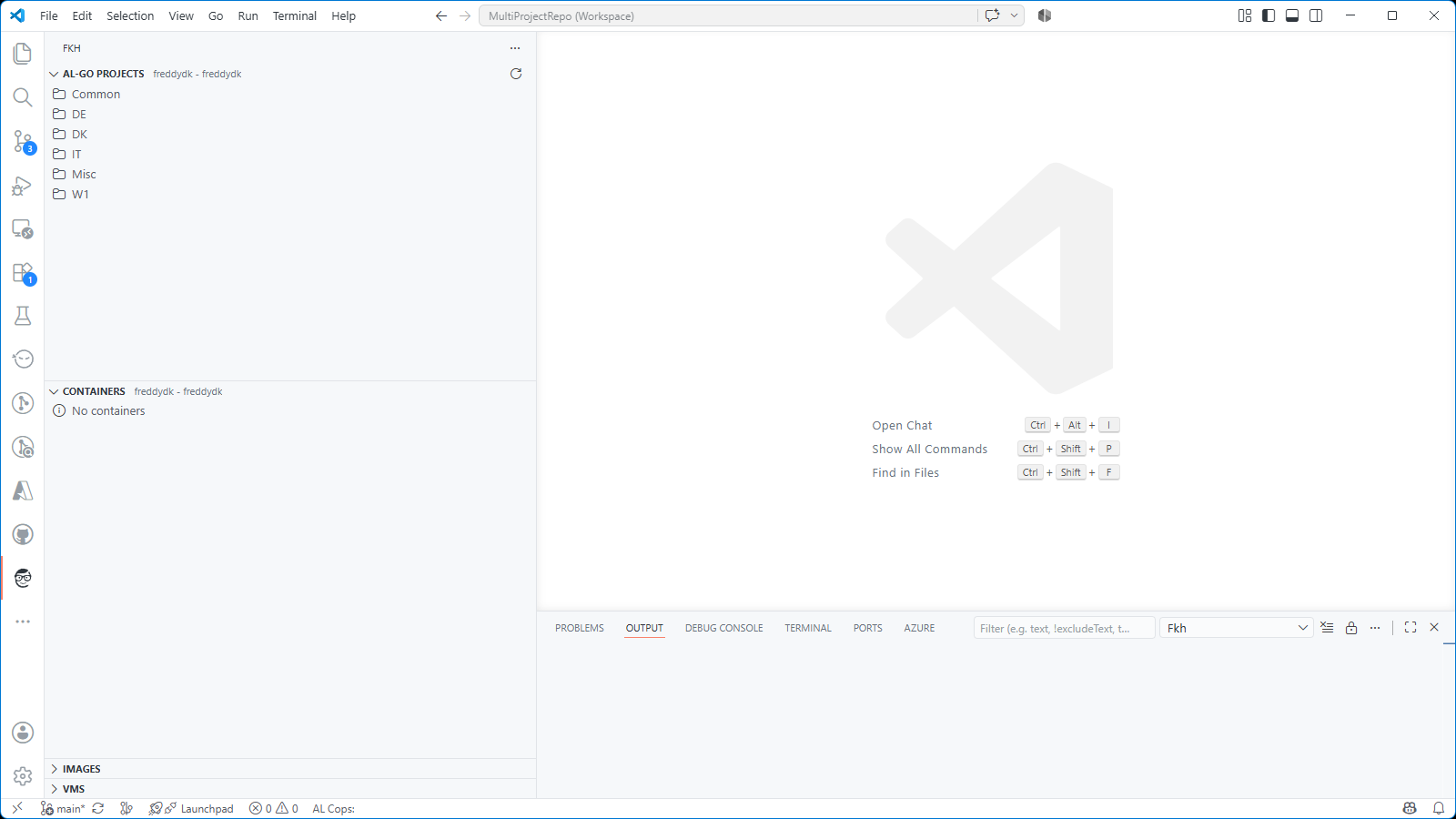
Fkh automatically discovers the AL-Go projects in your repository and list them in the projects view. Below, in the containers view you will see other containers you have running for other repos / projects.
Note: In Fkh, you can setup the maximum number of containers allowed by people
Fkh reads your AL-Go settings files to understand the project structure, which artifacts to use, and how to configure the container - so there is very little for you to specify yourself.
In the project area, hover over the project for which you want to create a container and a small computer icon appears. Click it, and VS Code opens a window, asking for the parameters which are not defined by settings:
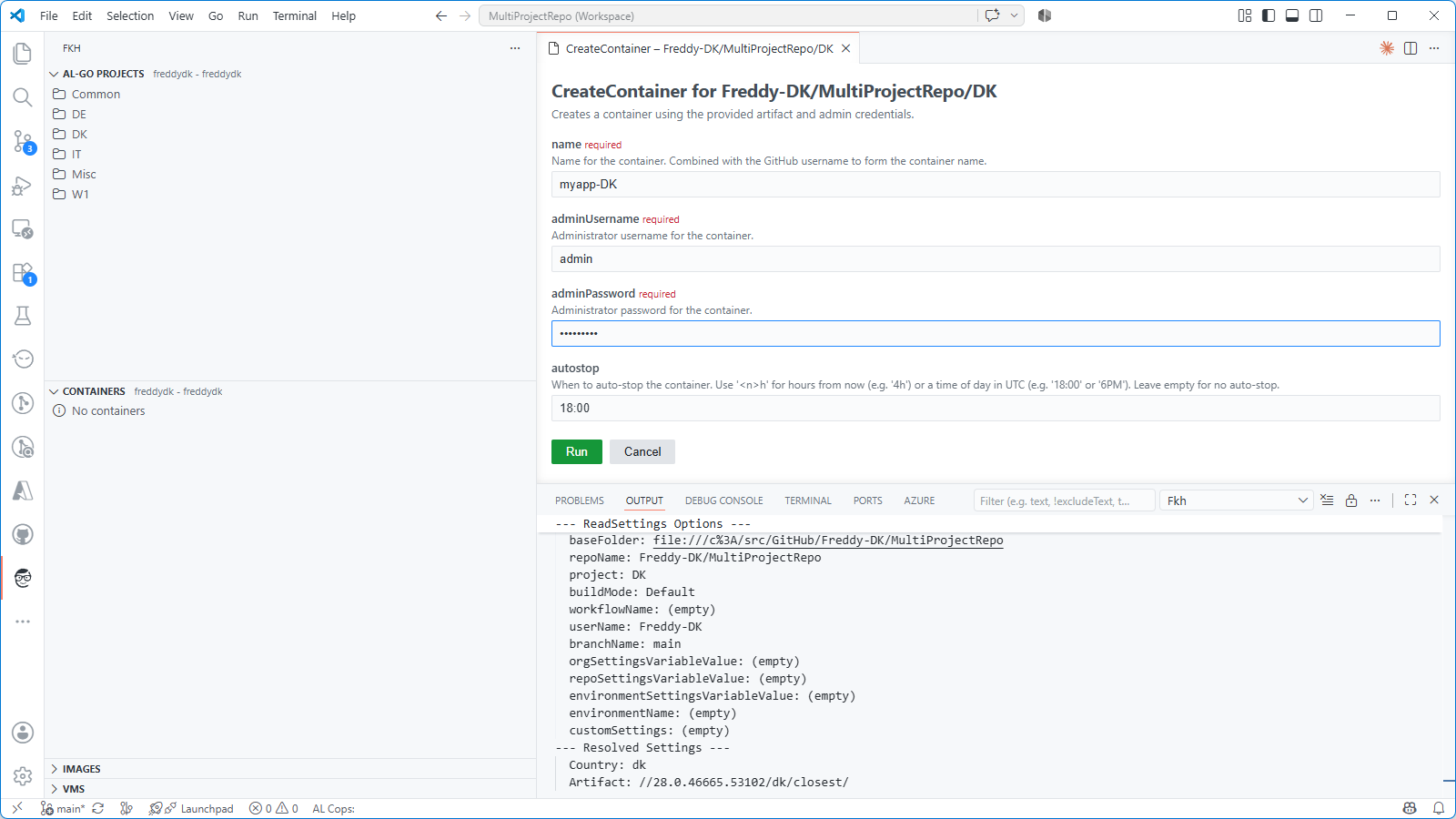
In this case, fill in container name and password and your container will be created.
The auto-stop time of 18:00 hours is in your local timezone and defined in settings. While creating the container, the Fkh extension will display pending, initializing before switching to running, to indicate that your container is ready.
When the container has been created, you will find it in the Fkh extension, in which you also can download the container log or the event log.
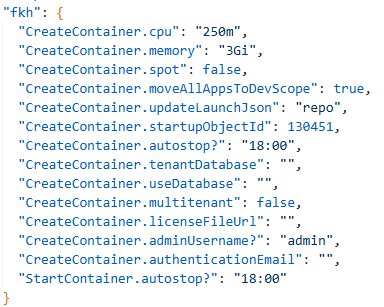
Parameters for container creation
There are quite a few more parameters for container creation. All parameters can be specified or defaulted in AL-Go settings for the repo or project
What permissions do I need?
Basically nothing, the create container action runs in VS Code online, Codespaces, cursor etc, and the only thing the user needs is a GitHub account for authentication and a group membership for authorization.
All the heavy lifting, container creation, database restore etc. is handled by an Azure Function, which used managed identities for controlling permissions - you just need to have internet access basically.
Connecting to your container
Once the container is running, you can see the details in the Fkh window and download the container log or the container event log.
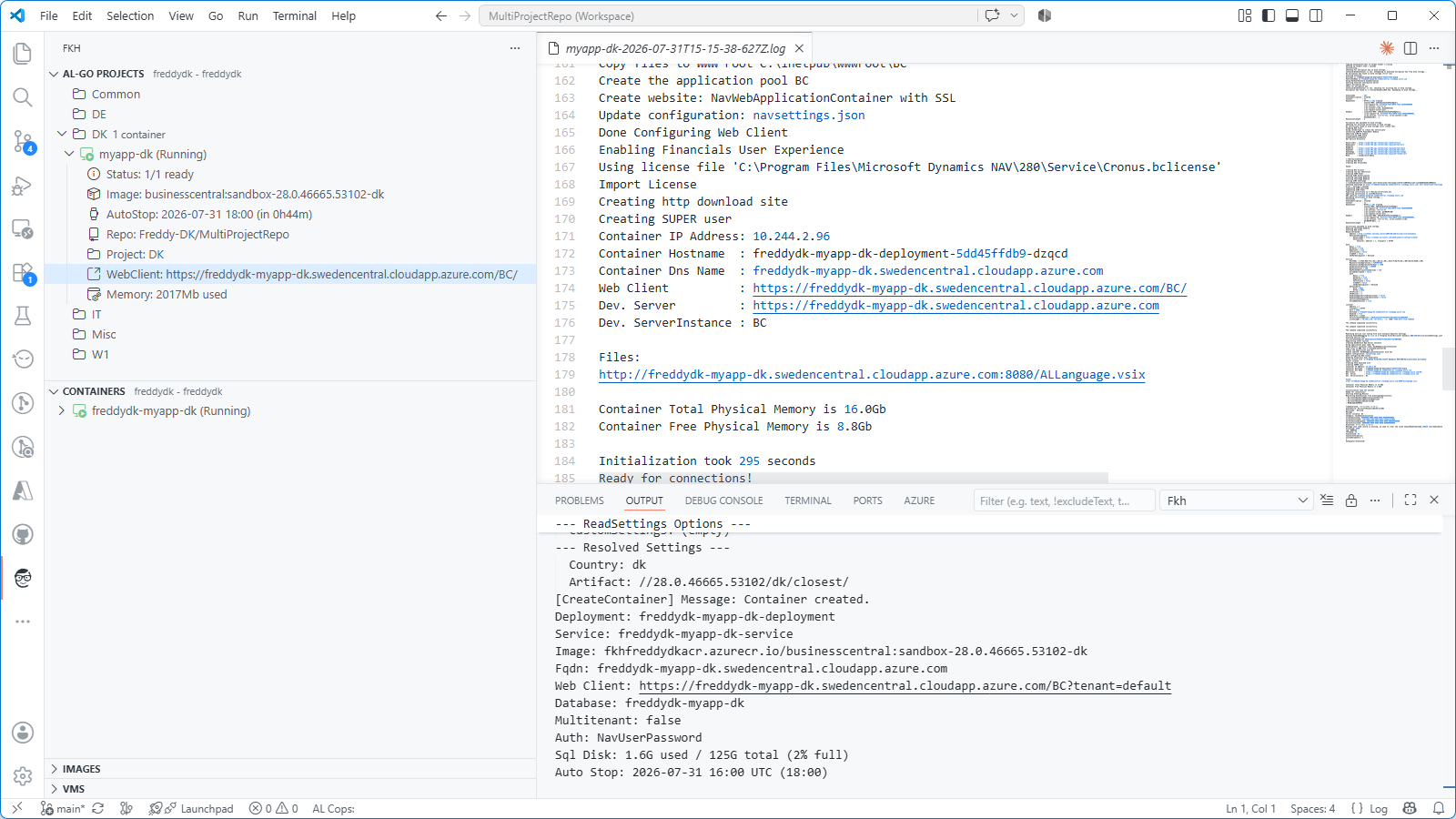
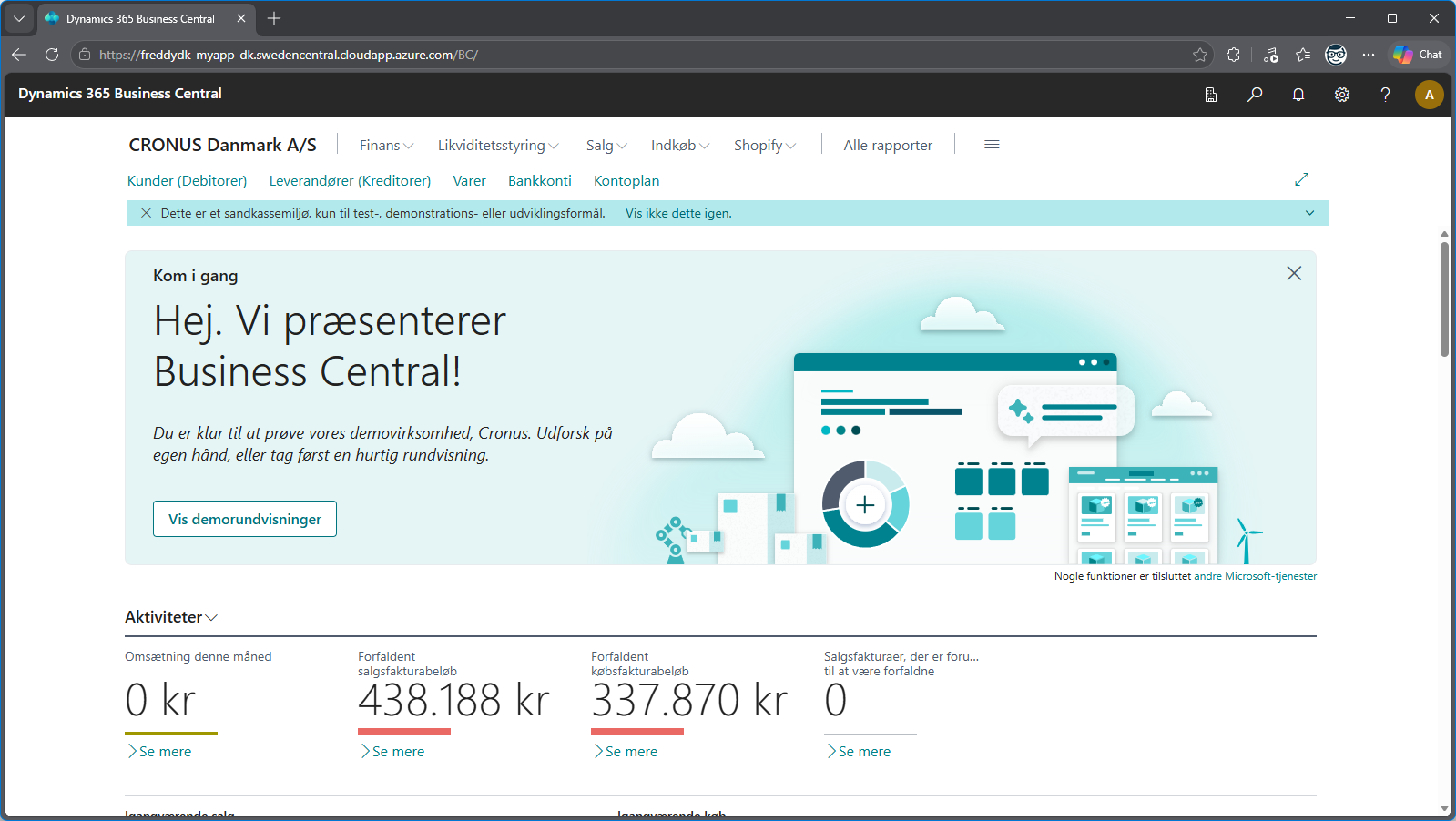
Clicking the Web Client link takes you directly to the container
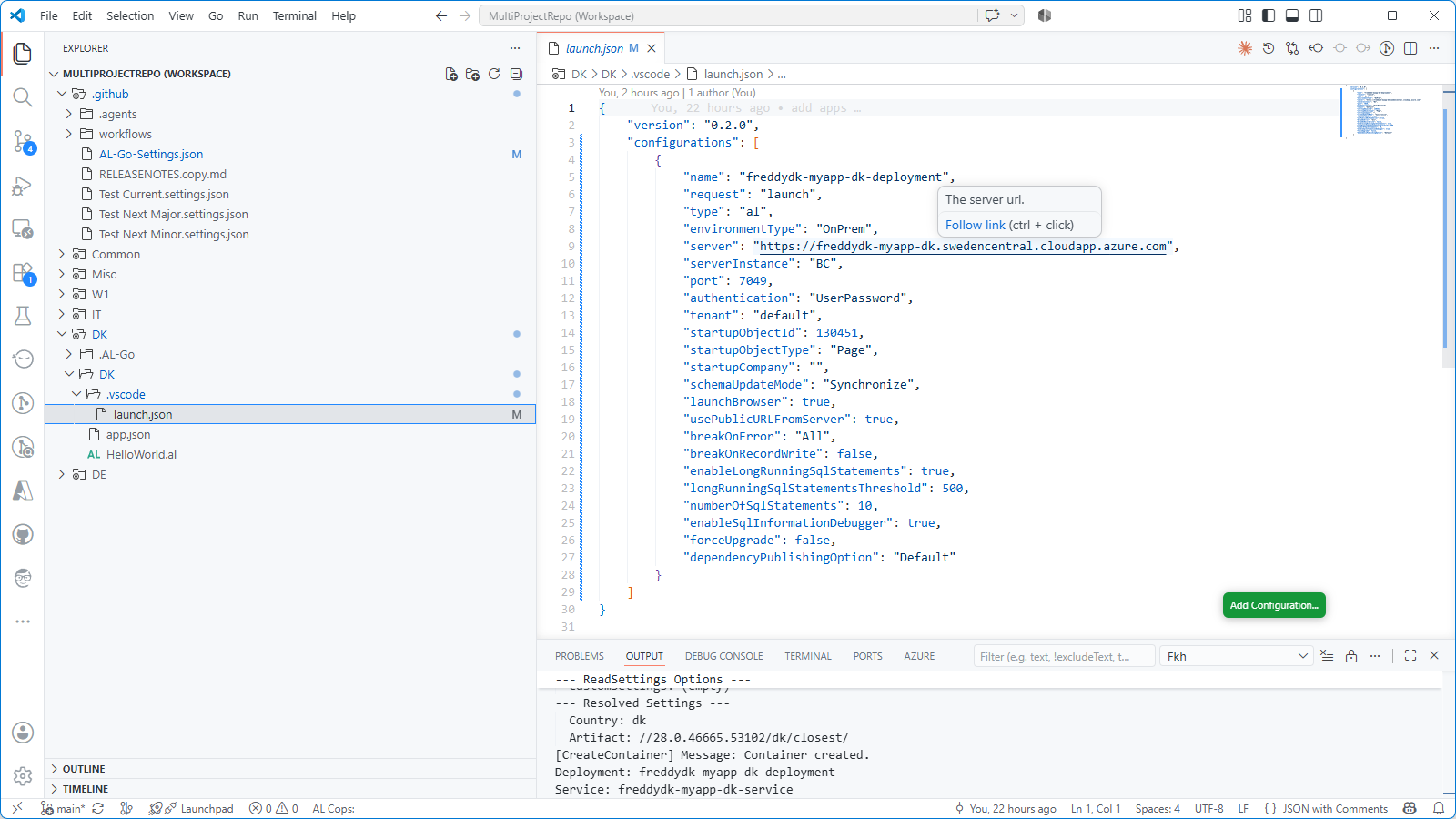
And a launch.json configuration is automagically added to the project for which the container was created:
Removing the container
The container will automatically stop at 18:00 hours if specified and can be started manually when needed - it takes ~1-2 minutes to start. If you want to stop the container manually, you can press the small stop icon next to the container. When you stop the container, the database is preserved.
If you want to remove container, you need to press the small trash icon next to the container.
What’s next?
Next post will explain a little more in detail about the security model of Fkh and why this is a very secure way to develop apps for Business Central.
Stay tuned and feel free to take a look at the project on GitHub: https://github.com/Freddy-DK/Fkh and please consider sponsoring me or setting up a support service agreement to keep this project alive and thriving.
Enjoy
Freddy