
Accessing Fkh containers using a terminal
In my previous post I broke down what it costs to run Fkh - Freddy’s Kubernetes Helper. This post is about something more hands-on: how you open a terminal to one of your containers.
Why you don’t have direct access to the container
Just like the SQL Server we looked at in the just-in-time database access post, your Business Central containers run as pods inside the Kubernetes cluster in your own Azure subscription. They are not exposed to the public internet, and there is (by default) no permanent open door from the outside into a container.
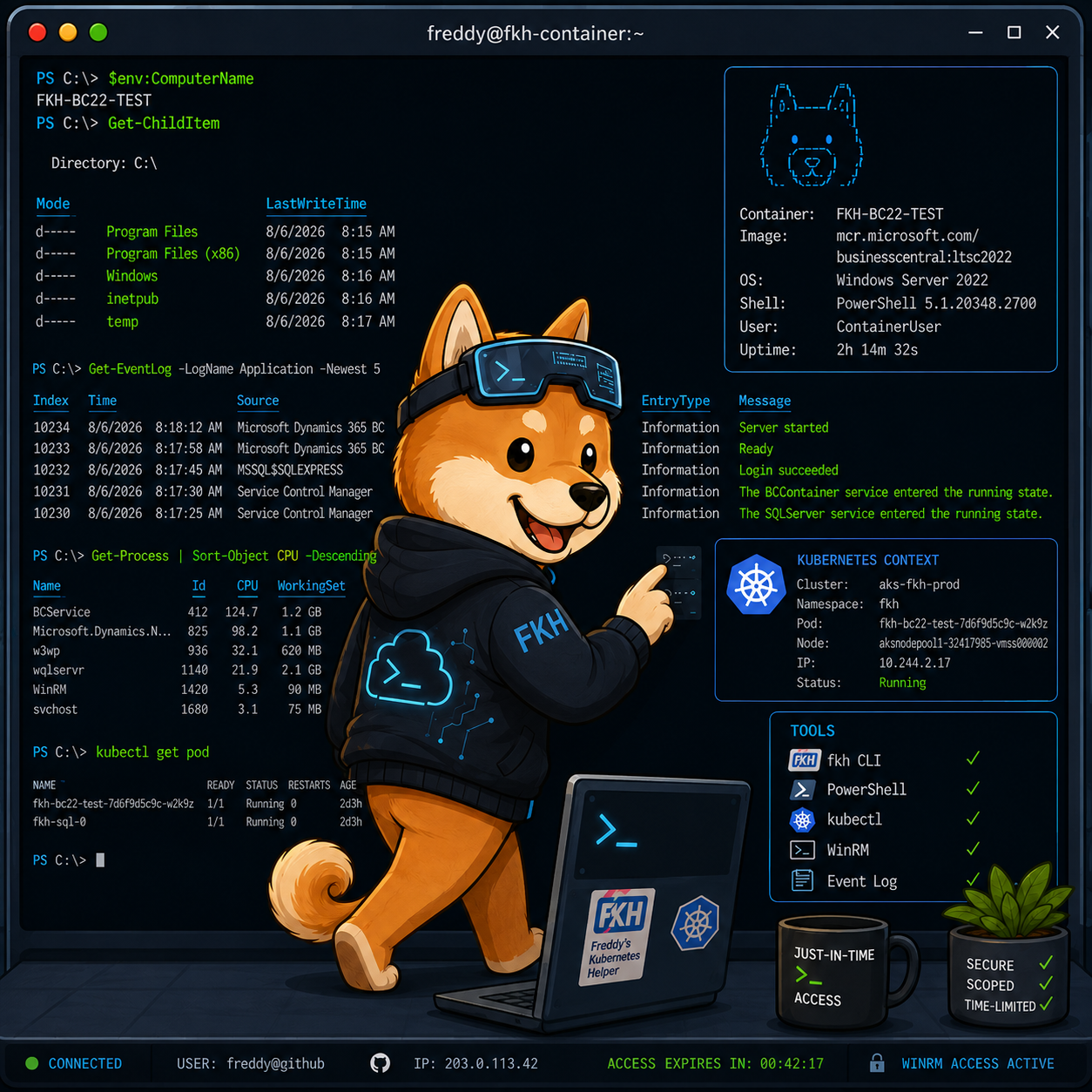
This is by design. The containers talk to each other and to the SQL Server from within the cluster, but from the outside there are no standing credentials and no public endpoint to reach in through, and while you could specify 5986 in the ports to open to your container, it could come with a risk.
Note: Fkh containers are set up with a Windows account lockout policy, meaning that if you decide to open the container to the internet, three failed attempts within a 15-minute timeframe would lock the account for 15 minutes, making brute-force attacks unlikely, but can make your containers useless. For shortlived containers in pipelines, this might be an acceptable trade-off.
Most of the time you don’t need terminal access. You create containers, publish apps and work with them straight from VS Code, the Web App or the CLI. But sometimes you genuinely need a shell inside the container - to inspect something, run some PowerShell interactively, or troubleshoot an issue that only shows up on the container itself.
We already saw how Fkh can create a just-in-time tunnel to the SQL Server. Getting into a container follows the same philosophy, and there are really two good ways to do it.
Option 1: Open a terminal with fkh CLI and kubectl (for this you need access to the Azure Portal and Kubernetes)
If you have kubectl installed and you have access to the cluster, the most direct way to get into a container is to use kubectl exec. Since the containers are Windows containers, you open a PowerShell session inside the pod:
fkh open --name <containername>
fkh will check whether you have kubectl installed and if you have - it will check that you are authenticated to the right subscription and that you do have access.
If you do not have access (as many people wont), you will be redirected to the poormansterminal, which basically allows you to type in commands and have them executed in the container.
Note: you can add –poormansterminal to the fkh open to force the poor mans terminal, but you still need the fkh CLI installed.
As this mechanism requires you to install the fkh CLI, kubectl and it requires you to have backend access, it is only for admins or infrastructure people.
Option 2: Open a WinRM session with allowwinrmaccess using fkh CLI
The second way is the one that fits the Fkh model best, and it mirrors exactly how just-in-time database access works. Instead of exposing SQL over a temporary tunnel, Fkh opens a temporary, tightly-scoped door for WinRM from your IP address to the container.
Just like there is an Allow Sql Access command, there is an Allow WinRm Access command. When you invoke it, Fkh will:
- Verify who you are using GitHub authentication and check your group membership for authorization.
- Open a temporary door for WinRM scoped to your public IP address only.
- Grant the access for a limited period of time, after which the door is closed again automatically.
Once the command has run, the output tells you the IP address to connect to. From there you create a PowerShell remoting session to the container and work with it as if it were local:
$option = New-PSSessionOption -SkipCACheck -SkipCNCheck
$session = New-PSSession -ConnectionUri https://172.160.98.242:5986/wsman -Credential (Get-Credential) -Authentication Basic -SessionOption $option
Enter-PSSession $session
Inside that session you have a full PowerShell prompt in the container, and you can invoke code, run scripts or copy files across the session using Copy-Item -ToSession. When you are done - or when the time window expires - the door is closed and the access is gone.
Note: just like with SQL access, you can run the corresponding Revoke WinRm Access command if you want to close the door before the timeout.
Option 3: Open a WinRM session with allowwinrmaccess using VS Code
The third way is actually the same as #2 - just from VS Code. If you right click the container on which you want a terminal, you can select Allow WinRm Access and Fkh will open the tunnel for you.
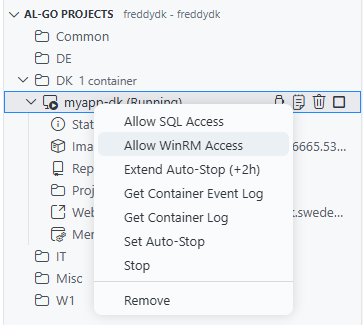
In the output window, you will see something like:
[AllowWinRmAccess] User: <github-user>
Container: <container-name>
Allowed IP: 203.0.113.19/32
WinRM Endpoint: 203.0.113.97:5986
Auto Revoke: 2026-08-10 07:23 UTC (2h)
Connect: Enter-PSSession -ConnectionUri https://4.166.125.97:5986/wsman -Credential (Get-Credential) -Authentication Basic -SessionOption (New-PSSessionOption -SkipCACheck -SkipCNCheck)
Note: that the IP number displayed here is NOT the IP number of the container, it is the IP number of the load balancer in front of the container, which has a tunnel open to the container.
When you now grab the line after connect and run that in the terminal, you will see something like:
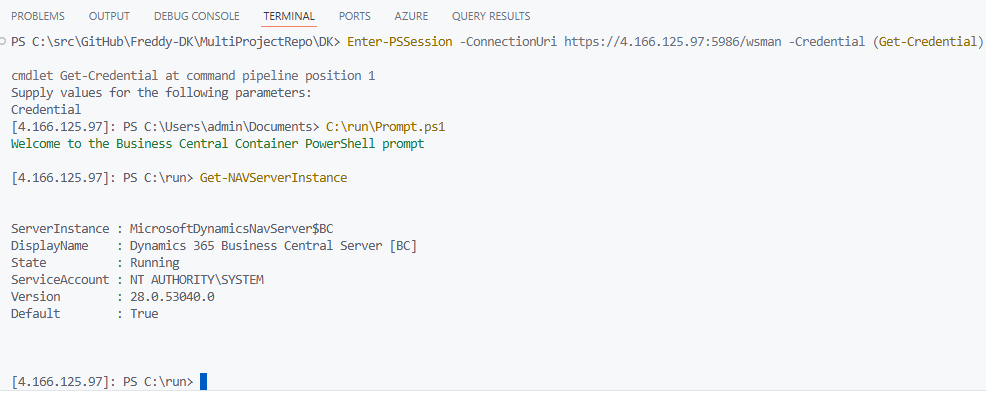
Now, your VS Code terminal is inside the container.
Which one should you use?
All options get you a terminal in the container, so it really comes down to how you like to work:
- kubectl is great if you already live in Kubernetes tooling and have
kubectlconfigured. It is direct and needs nothing really from Fkh - but it also assumes you have cluster access set up. - Allow WinRm Access is the Fkh-native option. It needs no cluster tooling on your machine, it is authenticated and authorized through GitHub, scoped to your IP, and time-limited - exactly like just-in-time database access.
For most people I would recommend the WinRM approach, simply because it gives you the same secure, just-in-time, no-standing-credentials experience as the rest of Fkh, without having to install and configure kubectl and secondly because it also runs in VS Code and can be performed without the fkh CLI installed.
Why this is a good thing
The terminal access model gives you the best of both worlds, just like the database access did:
- Security - the containers are never exposed to the public internet, there are no standing credentials, and every access is authenticated, authorized, scoped to your IP and time-limited.
- Convenience - when you genuinely need a shell in a container, you can have one, using tools you already have, without anyone handing out permanent access.
This is the same philosophy that runs through all of Fkh: no humanly created secrets, managed identities and federated credentials for machine-to-machine access, and GitHub authentication plus group membership for people.
What’s next?
In the coming posts I will continue going into more detail about how to set up Fkh and the functionality that is implemented or planned. One of my ideas is to support test runs directly from fkh, which could even take a snapshot of the database and restore the database afterwords if need be. This would cause the test run to happen in fkh, and your pipelines can do other things while running and only at the very end, wait until all tests are completed. Let me know whether you like that idea?
As always, take a look at the project on GitHub: https://github.com/Freddy-DK/Fkh and please consider sponsoring me or setting up a support service agreement to keep this project alive and thriving.
Enjoy
Freddy