
The price of running Fkh (Freddy's Kubernetes Helper)
In my previous post I described the Fkh CLI. One question I get almost every time I show Fkh - Freddy’s Kubernetes Helper is: what does it cost to run?
Since Fkh runs entirely in your own Azure subscription, the honest answer is “it depends on your usage” - but that isn’t very helpful, so this post breaks down exactly what has a cost attached, how each part scales as usage grows, and what a realistic monthly bill looks like for 5, 10 and 20 concurrently running containers.
Disclaimer: all numbers in this post are approximate, based on pay-as-you-go pricing and will vary by region, currency, discounts and actual usage. Always use the Azure Pricing Calculator for your own scenario. Prices are in USD.
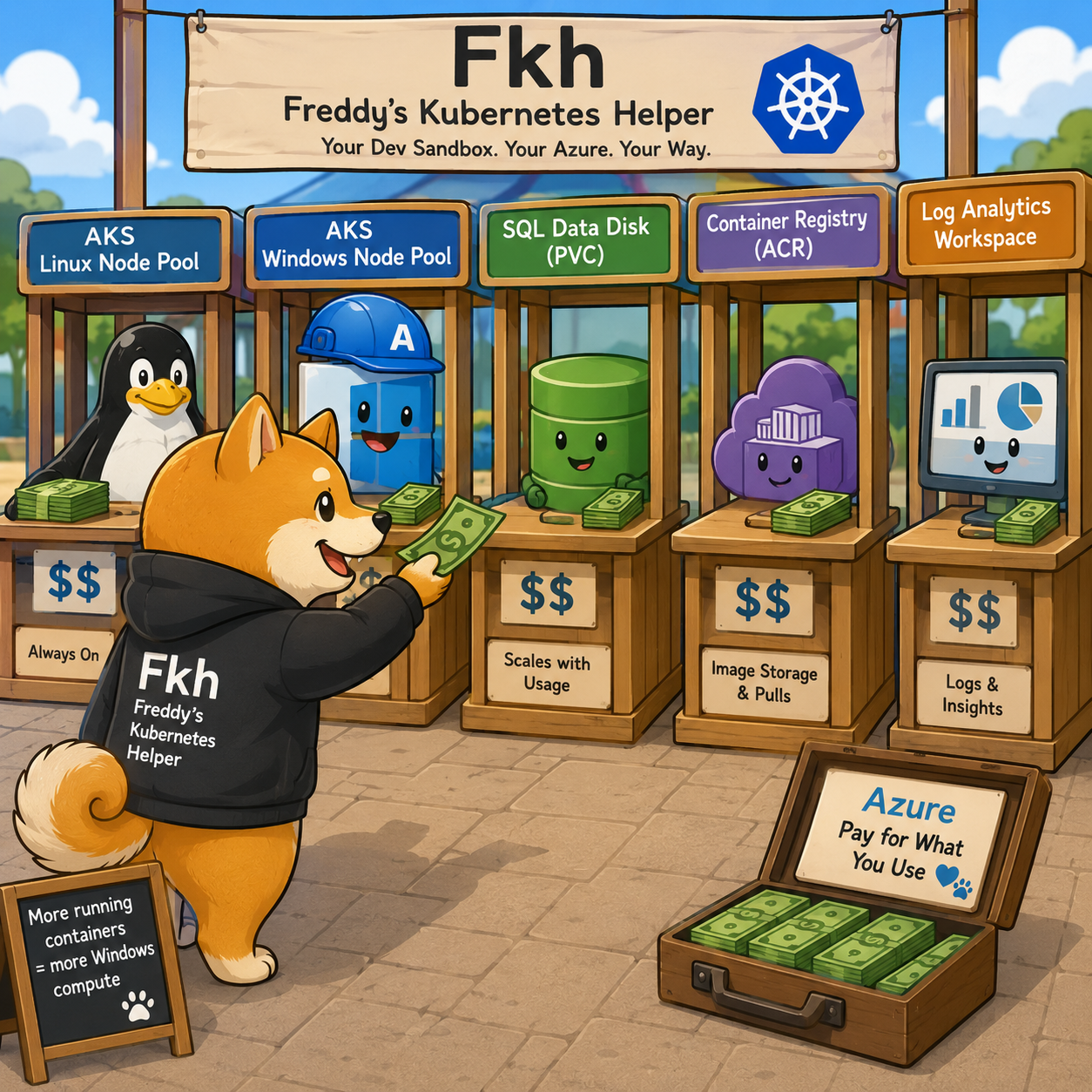
What has a cost attached?
Fkh is deployed with Terraform, and the resources fall into four buckets: things that are always billed, things that are usage-based (near zero at idle), things that are only billed when you enable them, and things that are free.
Always-billed components
| Component | Resource | Default SKU/size | Cost driver |
|---|---|---|---|
| AKS Linux node pool | azurerm_kubernetes_cluster default_node_pool |
1× Standard_D4s_v5 (always on) |
VM compute — runs SQL Server + system pods 24/7 |
| AKS Windows node pool | azurerm_kubernetes_cluster_node_pool.win |
Standard_D4s_v5, autoscale 0–10 |
VM compute per BC container node (scales to zero by default) |
| Managed disk (SQL PVC) | mssql_data_pvc |
128Gi Premium SSD (managed-csi-premium) |
Provisioned disk storage |
| Container Registry (ACR) | azurerm_container_registry |
Basic |
Registry storage + throughput |
| Function App storage | azurerm_storage_account.function |
Standard LRS | Required by Functions runtime |
| DB backup storage | azurerm_storage_account.dbs |
Standard LRS | Blob storage for DB backups + settings |
| Log Analytics Workspace | azurerm_log_analytics_workspace |
PerGB2018, 30-day retention | Log ingestion + retention (App Insights + Container Insights) |
| Application Insights | azurerm_application_insights |
workspace-based | Telemetry ingestion |
| AKS Load Balancer + egress IP | implicit (Standard LB from AKS) | Standard | Base LB + outbound data transfer, plus a per-container cost - each container’s LoadBalancer Service adds 5 rules + a public IP (see below) |
Usage-based / near-zero at idle
| Component | Resource | Notes |
|---|---|---|
| Function App (backend) | azurerm_windows_function_app + azurerm_service_plan (Y1 Consumption) |
Pay-per-execution, no idle cost |
Conditional (only billed when enabled)
| Component | Flag | Cost note |
|---|---|---|
| Windows Spot node pool | windows_spot_enabled (default false) |
Standard_D8s_v5, spot pricing (cheaper, evictable) |
| Staging Function App | enable_staging_backend |
Shares the Y1 plan — consumption only |
| Static Web App (Web UI) | enable_web_app |
SKU Free (no cost) |
| AKS Standard/Premium tier | aks_sku_tier (default Free) |
Standard adds control-plane SLA charge (~$73/mo) |
| Kubecost | kubecost_enabled |
Helm chart — free tier, but consumes node CPU/memory |
Free / no direct charge
Managed identities, the resource group, role assignments, Kubernetes secrets/services/network policies, random passwords, and the image pre-pull DaemonSet (it consumes node resources you already pay for, but there is no separate charge).
GitHub repository (builds the Docker images)
Fkh integrates with AL-Go for GitHub, and the generic and specific Business Central Docker images are built by GitHub Actions in your repository. That means your only “cost” here is GitHub Actions minutes - free for public repositories and included (up to your plan’s quota) for private ones. There is no Azure charge for the build itself; the resulting images simply land in your ACR.
Biggest cost drivers: the AKS node pool VMs (Linux always-on + Windows on demand), the 128Gi Premium SSD disk, the per-container Load Balancer rules/public IPs, and Log Analytics ingestion.
How each part scales
The whole point of the design is that a large chunk of the cost is a fixed baseline that is shared by everyone, while the part that grows with usage is mostly Windows compute - and that part scales to zero when nobody is working.
Windows node pool — the big one
This is where your money goes when developers are actually working. Each Business Central container needs CPU and memory, and the Windows node pool autoscales (0–10 by default) to fit the containers that are currently running.
The important characteristics:
- It scales to zero. When no containers are running - nights, weekends, holidays - the Windows node pool has no nodes and therefore no compute cost. You only pay while containers are up.
- It scales with the number of running containers, not headcount. A single developer might have zero, one, or several containers up at once. What matters is how many containers are running at the same time, and for how long - not how many people are on the team. You can define the max. number of containers allowed for each developer.
- Packing matters. A Business Central container needs roughly 3 GB (depending on the size of your apps - you can monitor this and define the requirement on a per project basis), so a
Standard_D4s_v5(4 vCPU / 16 GB) comfortably hosts about 3 containers. More concurrent containers means more nodes - or bigger nodes (see the next section). - Spot can cut it dramatically. Enabling the Windows Spot node pool (
windows_spot_enabled) uses evictable spot capacity at a large discount - great for short-lived, throw-away containers that can tolerate an occasional eviction.
Choosing the right Windows node size
The default Standard_D4s_v5 is a good starting point, but it is not your only option - and the size you choose affects both cost efficiency and how smoothly the pool scales. Because a container needs ~3 GB, the practical density per node looks roughly like this:
| Node SKU | vCPU / RAM | Approx. containers | Relative cost/hr |
|---|---|---|---|
Standard_D4s_v5 |
4 / 16 GB | ~3 | 1× |
Standard_D8s_v5 |
8 / 32 GB | ~8 | ~2× |
Standard_D16s_v5 |
16 / 64 GB | ~20 | ~4× |
Standard_D32s_v5 |
32 / 128 GB | ~40 | ~8× |
Notice that the bigger SKUs pack proportionally more containers - a D16s_v5 costs roughly 4× a D4s_v5 but hosts nearly 7× the containers, because the fixed OS/system overhead per node is amortized over more workloads. So the cost per running container actually drops as the node gets bigger, as long as you keep the node reasonably full.
The trade-off is scaling granularity:
- Small nodes (
D4s_v5) scale in fine steps - great for spiky, low-concurrency usage where you want to add and remove capacity three containers at a time and scale to zero quickly. The downside is more wasted headroom when a node is only partly full. - Large nodes (
D8s_v5/D16s_v5) give the best density and the lowest per-container cost for steady, higher-concurrency workloads, but each scale-up adds a big chunk of capacity at once, so a nearly-idle large node wastes more money than a small one.
Rule of thumb: pick the smallest node that your typical concurrent container count keeps comfortably full. A team that usually runs ~8 containers at a time is better served by one D8s_v5 than three D4s_v5 nodes; a team spiking to ~20 containers is a natural fit for a D16s_v5.
Linux node + SQL disk — mostly fixed
The Linux node runs SQL Server and the system pods 24/7, so it is a fixed cost regardless of how many containers you run. The 128Gi Premium SSD is likewise a fixed, provisioned cost - but it grows if you store more or larger databases. If you upload many database backups or host large databases, you may bump the disk size (or add disks), which increases this line.
Log Analytics — grows gently with usage
Log Analytics is billed per GB ingested. More running containers and more activity means more telemetry, so this line grows slowly as usage increases. It rarely dominates the bill, but it is worth keeping an eye on retention (30 days by default) and what you choose to collect. Container Insights in particular can be tuned down if you don’t need the full firehose.
ACR — flat until you outgrow Basic
On the Basic SKU, ACR is a small, near-flat cost. It grows only if you store a lot of images or need more throughput/geo-replication, at which point you’d move to Standard or Premium. For most teams, Basic is plenty.
Backup storage — grows with what you keep
The DB backup storage is standard blob storage, so it grows linearly with the number and size of the database backups you upload and keep. Pruning old versions (see the file/database storage commands) keeps this in check.
Function App — effectively free
The backend runs on a Y1 Consumption plan, so it is pay-per-execution with no idle cost. Even with a lot of activity and commands, the number of executions is tiny in Azure Functions terms, so this stays negligible.
Load balancer — a per-container cost
Each Business Central container gets its own Kubernetes Service of type LoadBalancer, exposing five ports (80, 443, 7047, 7048, 7049) and its own public IP. On a Standard Load Balancer that is five load-balancing rules and one public IP per container.
Standard Load Balancer pricing (West Europe, Aug 2026) is roughly:
- The first 5 rules are included for free (per hour, across the whole load balancer).
- Each additional rule is ~$0.01 / rule-hour.
- Each public IP is ~$0.006 / IP-hour.
Because the very first container already uses up the 5 free rules, every container after the first is billed for its 5 rules plus its public IP - about 5 × $0.01 + $0.006 ≈ $0.056/hour ≈ ~$41/month per container if it runs 24/7. Unlike compute, this cost is identical whatever node SKU you use - it scales with the number of running containers, not node size. The estimates below include this load balancer cost.
Idea: I an considering adding a feature to containers, where I can disable endpoints to save a buck or two on the load balancer. Let me know if you think that is a good idea. I could also create a traefik-like frontend to get rid of the load balancer all-tigether.
Approximate monthly cost for 5, 10, 20 and 40 running containers
Putting it together, the bill is essentially a shared fixed baseline plus Windows compute that scales with the number of concurrently running containers plus a little extra telemetry.
The numbers below assume a realistic working pattern: each container runs during a working day (~8 hours × ~22 workdays ≈ 176 hours/month) and the Windows node pool scales to zero the rest of the time, ~3 containers per Standard_D4s_v5 node, aks_sku_tier = Free, and no spot node pool. “Running containers” means the peak concurrent number of containers. The totals include the per-container load balancer cost described above. Your mileage will vary.
Shared baseline (independent of container count): ≈ $210/mo
| Baseline item | Approx. /mo |
|---|---|
Linux node (Standard_D4s_v5, 24/7) |
~$140 |
| Premium SSD 128Gi | ~$20 |
| ACR Basic | ~$5 |
| Function + DB backup storage | ~$10 |
| Log Analytics + App Insights (light) | ~$13 |
| Load Balancer base + egress IP | ~$22 |
Function App (Y1 consumption) |
~$1 |
Total estimate (8-hour working day) - approximate total /mo depending on which Windows node SKU you pick (baseline + telemetry + Windows compute + per-container load balancer), with the node pool scaling to zero outside working hours. Each cell shows total /mo ($ per-container /mo) ×node count:
| Running containers (peak) | D4s_v5 (3/node) |
D8s_v5 (8/node) |
D16s_v5 (20/node) |
D32s_v5 (40/node) |
|---|---|---|---|---|
| 1 | ~$285 ($285/c) ×1 | ~$350 ($350/c) ×1 | ~$485 ($485/c) ×1 | ~$750 ($750/c) ×1 |
| 5 | ~$395 ($79/c) ×2 | ~$395 ($79/c) ×1 | ~$530 ($106/c) ×1 | ~$795 ($159/c) ×1 |
| 10 | ~$590 ($59/c) ×4 | ~$590 ($59/c) ×2 | ~$590 ($59/c) ×1 | ~$855 ($86/c) ×1 |
| 20 | ~$905 ($45/c) ×7 | ~$835 ($42/c) ×3 | ~$705 ($35/c) ×1 | ~$970 ($49/c) ×1 |
| 40 | ~$1,590 ($40/c) ×14 | ~$1,325 ($33/c) ×5 | ~$1,195 ($30/c) ×2 | ~$1,195 ($30/c) ×1 |
The pattern is clear: for low concurrency the smaller SKUs are cheapest (a D4s_v5 or two), while for high concurrency the bigger SKUs win because they pack containers more densely and carry less per-node overhead. At 40 containers a single D32s_v5 costs about a third less than fourteen D4s_v5 nodes.
Note: the default Windows node pool autoscales
0–10. The 14-nodeD4s_v5case for 40 containers would needmax_countraised - another reason to reach for a bigger SKU at that scale.
Note also: you can define default (or forced) shutdown time for containers and allow individual developers to extend or restart containers when working overtime (happens sometimes).
But what if you never shut down? (24/7)
Here is the exact same scenario, but assuming you never shut anything down - the containers and their Windows nodes run 24/7 (~730 hours/month), and the per-container load balancers stay allocated around the clock. The baseline is unchanged (the Linux node and the Premium SSD are 24/7 either way), but the Windows compute and the load balancer - and therefore the per-container cost - go up substantially:
| Running containers (peak) | D4s_v5 (3/node) |
D8s_v5 (8/node) |
D16s_v5 (20/node) |
D32s_v5 (40/node) |
|---|---|---|---|---|
| 1 | ~$495 ($495/c) ×1 | ~$770 ($770/c) ×1 | ~$1,320 ($1,320/c) ×1 | ~$2,420 ($2,420/c) ×1 |
| 5 | ~$960 ($192/c) ×2 | ~$960 ($192/c) ×1 | ~$1,510 ($302/c) ×1 | ~$2,605 ($521/c) ×1 |
| 10 | ~$1,730 ($173/c) ×4 | ~$1,735 ($174/c) ×2 | ~$1,735 ($174/c) ×1 | ~$2,830 ($283/c) ×1 |
| 20 | ~$3,010 ($151/c) ×7 | ~$2,735 ($137/c) ×3 | ~$2,190 ($110/c) ×1 | ~$3,285 ($164/c) ×1 |
| 40 | ~$5,825 ($146/c) ×14 | ~$4,735 ($118/c) ×5 | ~$4,185 ($105/c) ×2 | ~$4,185 ($105/c) ×1 |
Comparing the two tables shows just how much of the bill is under your control: at 40 containers on a D16s_v5, leaving everything running 24/7 instead of an 8-hour working day pushes the total from ~$1,195 up to ~$4,185 - you are now paying for nodes and public IPs around the clock, even when nobody is using them.
Note: there is a new feature coming out, where you can force the entire cluster to shut down during nights and public holidays to save cost.
Two things stand out:
- The per-container cost drops as you grow, because the fixed baseline is shared across all running containers, and larger nodes pack more densely. At 40 containers on a
D32s_v5you are down to roughly $105 per container, versus ~$192 at 5 containers. - Windows compute dominates the variable cost, which is exactly the part you control - running fewer nodes, good packing, right-sizing the node SKU, scaling to zero out of hours, and enabling spot for evictable workloads can all bring the Windows compute line down substantially.
This makes scaling to zero and StopFkh even more valuable: they don’t just save compute, they release the per-container load balancer rules and public IPs too.
What about a bigger Linux node for SQL?
The baseline above assumes the default single Standard_D4s_v5 Linux node running SQL Server. That is fine for light-to-moderate database usage, but SQL is the one part of the baseline you may genuinely need to scale up - not because of the number of containers, but because of database size, query load, and how many databases are active at once.
If SQL becomes the bottleneck, you would move the Linux node to a larger SKU, and this changes the fixed part of the bill (it is on 24/7):
| Linux SQL node | vCPU / RAM | ~Cost /mo (Linux, 24/7) | Delta vs. baseline |
|---|---|---|---|
Standard_D4s_v5 (default) |
4 / 16 GB | ~$140 | — |
Standard_D8s_v5 |
8 / 32 GB | ~$280 | +$140 |
Standard_D16s_v5 |
16 / 64 GB | ~$560 | +$420 |
Standard_E8s_v5 (memory-optimized) |
8 / 64 GB | ~$365 | +$225 |
A few things to keep in mind:
- This is a 24/7 cost, unlike the Windows nodes it does not scale to zero - so upsizing SQL raises your floor every month.
- SQL loves memory. If you are hosting many or large databases, a memory-optimized
E-series node (e.g.E8s_v5with 64 GB) often gives more headroom per dollar than a same-priced general-purpose node. - The Premium SSD grows separately. More/larger databases usually means bumping the 128Gi Premium SSD too, which adds to the baseline independently of the node size.
For most teams the default D4s_v5 Linux node is plenty and you should only upsize it when you actually observe SQL pressure.
Keeping the bill down
A few levers you have:
- Scale the Windows node pool to zero out of hours. The Windows node pool can drop to zero nodes when no containers are running - nights, weekends, holidays - so you only pay for Windows compute while it is actually up. Compared to the 24/7 table above, scaling to zero outside working hours can easily cut the Windows compute line by more than half - and releases the per-container load balancer rules and public IPs too.
- Shut down the whole cluster with
StopFkh. During non-work hours you can stop the entire cluster withStopFkh- both the Linux and Windows node pools - removing almost all the compute cost and the load balancer cost. The one thing that keeps costing money is the persisted Premium SSD disk, which stays allocated (and billed) whether the cluster is running or not. - Right-size the Windows node SKU. Match the node size to your typical concurrent container count so nodes stay full (see Choosing the right Windows node size).
- Use spot nodes for throw-away containers. Enable
windows_spot_enabledfor ephemeral, evictable workloads and let them ride the discount. - Stay on the
FreeAKS tier unless you need the control-plane SLA (Standardadds ~$73/mo). - Prune old database backups and file versions to keep blob storage lean.
- Tune Log Analytics retention and collection if telemetry ingestion grows.
- Turn on Kubecost (
kubecost_enabled) if you want per-namespace/per-container cost visibility - just remember it consumes a bit of node CPU/memory itself.
What if Business Central would run on Linux?
Everything above assumes Business Central containers run on Windows nodes - and today they do. But a big part of the Windows compute cost is simply the Windows licensing baked into the VM price. A Linux VM of the same size is roughly half the hourly cost of its Windows counterpart, the Linux OS also uses less CPU and memory and Linux is more performant, meaning that we can pack more containers on the same compute. The day Business Central containers can run on Linux, the compute side of this whole post changes fundamentally.
There is a catch during the transition, though. If you have older (Windows) containers running at the same time as new (Linux) containers, you will temporarily be paying for two container node pools instead of one - the existing Windows pool and a new Linux pool for the BC-on-Linux containers. During that overlap your bill actually goes up a little, because you are carrying both.
But that is a temporary situation. As you retire the older Windows-based containers and everything moves onto Linux, you drop the expensive Windows node pool entirely, and the container compute lands on Linux nodes at roughly half the price. The end result is that pricing drops pretty dramatically - the single biggest variable cost in Fkh gets cut roughly in half, on top of all the levers (scale-to-zero, StopFkh, right-sizing) you already have.
So the honest picture is: a short-term bump while you run old and new side by side, followed by a significant, lasting reduction once you are fully on Linux.
Comparing with other services
Azure Container Instances
When running Azure Container Instances with the standard Microsoft Business Central images, you cannot really stop and start containers - stopping a container removes the database as well, and starting a new ACI takes a very long time. In terms of pricing, an ACI with 2 vCPUs and 12 GB of memory is around $160 per month, and there is no real infrastructure around it - no integration with AL-Go or anything - so it wastes a lot of hours where your developers could be doing real work. With the current functionality in ACIs, I do not see them as relevant for Business Central work.
Azure VMs
When running Azure VMs, you could use Traefik and pack more containers onto one VM, but this also requires serious infrastructure - or it wastes time for your developers and requires them to have permissions and budget in the Azure Portal. Pricing for an Azure VM is in the same ballpark as ACIs, but with more overhead on installation and maintenance.
Idea: I could build support in Fkh for using Azure VMs as an alternative to a K8s cluster, and then allowing Fkh to set up VMs and pack containers on these instead. This might make Fkh more useful for smaller partners as well, and it would be seamless for the developer.
Cosmo Alpaca
For Cosmo Alpaca, you pay per container per minute, meaning that you have a much easier price calculation. Cheapest price I saw on their website is around $1 per hour (I think you can get a cheaper price when using a lot of compute), which would sum up to around $176 per month per container, but here you have a fully integrated VS Code extension, which helps you work with containers, saving time for your developers to do real work.
Locally running containers
Locally running containers obviously doesn’t incur any Azure costs, but they do take time away from your developers and this can be a significant amount of hours wasted.
Why I don’t host Fkh for partners and customers
There are many reasons, but the primary two are these:
If I were to host Fkh, I would essentially be running the Linux SQL Server in Production and would have to pay license costs to Microsoft for hosting a SQL Server for my customers (not cheap) - even though they use it for Development and Test.
Partners and customers would be tied to me as a vendor with nowhere else to go (without a moving cost). I don’t want to put partners and customers in this situation and I don’t think they would want to put themselves in that situation either.
Wrapping up
Fkh is not free to run - it uses real Azure resources in your own subscription - but the design keeps the fixed cost small and pushes the variable cost onto Windows compute that you control. The tables above assume the node pool runs 24/7, but scaling the Windows node pool to zero out of hours - or stopping the whole cluster with StopFkh and paying only for the persisted disk - can remove more than half of that compute. The result is a bill that scales gracefully and gets cheaper per running container as your usage grows.
Realistically, in a company with 20 developers, you will be running containers at ~$42 per month (≈ $0.004 per minute) when set up correctly. But pricing isn’t really the biggest advantage of Fkh. The biggest advantage is that it is all yours: you are in control, the data never leaves your subscription, the product is open source, the pricing is the Azure cost, it is secure, and your developers don’t need any elevated privileges or permissions, nor do they need access to Azure resources or budget.
As always, take a look at the project on GitHub: https://github.com/Freddy-DK/Fkh and please consider sponsoring me or setting up a support service agreement to keep this project alive and thriving.
Enjoy
Freddy